

IMPORTANT UPDATE: Microsoft Project Online Retirement scheduled for September 30, 2026. From this date Project Online will no longer be accessible, however we can help you transition to Planner Premium and the Wellingtone Accelerator+ or to Project Server Subscription Edition.
When it comes to keeping projects on track, baselines in Microsoft Project are one of the most powerful yet underused features.
A baseline is essentially a frozen snapshot of your project plan at a particular moment in time. It captures details such as start and finish dates, durations, work, and costs. Once set, you can compare your actual progress against your original plan, making it easier to monitor performance and identify deviations.

What is a baseline in Microsoft Project?
In project management terms, a baseline represents the original approved plan for a project. It’s the agreed scope, schedule, and budget against which you will measure actual performance. In Microsoft Project, a baseline records:
-
Task start and finish dates
-
Duration
-
Work hours
-
Resource assignments
-
Costs
By comparing the baseline with your current schedule, you can answer important questions such as:
-
Are tasks starting and finishing as planned?
-
Is the project on budget?
-
Has the critical path changed?
-
How much scope creep has occurred?
How many baselines can you have in Microsoft Project?
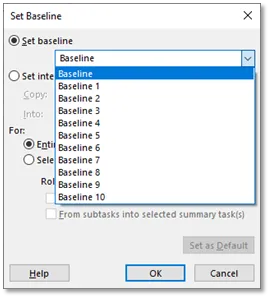
Microsoft Project supports 11 separate baselines:
-
Baseline 0 (unnumbered) – The control baseline and your main point of reference
-
Baselines 1–10 – Numbered baselines for storing interim or historical snapshots
Why so many?
Projects change. Having multiple baselines allows you to keep a record of those changes, rather than overwriting your original plan and losing valuable historical data.
Example usage:
| Baseline Slot | Typical Use Case |
|---|---|
| Baseline 0 | Current approved plan (control baseline) |
| Baseline 10 | Original approved plan |
| Baselines 1–9 | Interim snapshots after major changes or re-baselining |
How to set a baseline in Microsoft Project
Follow these steps to set your baseline:
-
Finalise your schedule – Make sure your tasks, dates, resources, and costs are confirmed.
-
Go to the Project tab on the ribbon.
-
Click Set Baseline → Set Baseline.
-
Choose Baseline 0 for your control baseline.
-
Click OK.
Pro Tip: Immediately copy Baseline 0 into one of the numbered baselines (e.g., Baseline 10). This way you always keep a record of the original plan, even if Baseline 0 is later updated.


Maintaining a baseline history
It’s best practice to never overwrite your original baseline. Instead:
-
Save the approved plan to Baseline 0 and a numbered baseline (e.g., Baseline 10).
-
When changes are approved, overwrite Baseline 0 and save a copy into the next available numbered baseline.
-
This gives you a timeline of baselines (10 to 1) you can refer back to for audits, lessons learned, or stakeholder reporting.
When should you re-baseline?
Re-baselining should be a controlled process — not something done casually. Good reasons to re-baseline include:
-
A major scope change approved via change control
-
Significant schedule shifts caused by external factors
-
Budget reallocation that impacts project delivery
Avoid re-baselining too frequently, as it can hide performance trends.



How to view baseline data
Microsoft Project offers several ways to review your baseline information.
1. Project Statistics
Go to Project → Project Information → Statistics.
Here you’ll see start/finish dates, durations, and costs for both your current plan and the baseline.
2. Add Baseline Columns
Insert columns such as:
- Baseline Start
- Baseline Finish
- Baseline Duration
- Baseline Cost
This lets you see planned vs. actual data side-by-side in your task table.
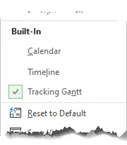
3. Tracking Gantt View
Perhaps the most visual option:
Go to View → Tracking Gantt.
Baseline bars appear in one colour (often grey) beneath your actual task bars.
You can instantly see if tasks are ahead or behind schedule.
Want to compare a different baseline?
Go to Gantt Chart Format → Baseline dropdown and select any of the 11 baselines.
Protected vs. unprotected baselines (Project Online)
In Microsoft Project Online and Planner for the web, administrators can lock down certain baselines.
-
Protected Baselines (Baseline 0–5) – Usually controlled by the PMO or admin for official reporting
-
Unprotected Baselines (Baseline 6–10) – Available for project managers to use freely
Why this matters:
Locking protected baselines ensures consistency in portfolio reporting. It prevents accidental overwriting of key baselines used in dashboards, Power BI reports, and executive summaries.

Best practices for using baselines
- Always set Baseline 0 after project approval.
- Keep your original plan safe by saving it into a numbered baseline.
- Only re-baseline after formal approval.
- Use Tracking Gantt for quick visual checks.
- Train your team on why baselines matter – they are not “set and forget”.
Common mistakes to avoid
- Overwriting your original baseline without keeping a copy.
- Failing to set a baseline before work begins (you lose the ability to measure performance properly).
- Re-baselining too often, making it hard to assess true variance.
- Not using multiple baselines to track history.
Using baselines for portfolio reporting
If you use Project Online or connect Project to Power BI, baseline data can feed into:
- Schedule variance reports
- On-time delivery KPIs
- RAG (Red/Amber/Green) status indicators
- Resource forecasting
Baselines are the foundation of accurate portfolio-level reporting – without them, it’s much harder to measure success across projects.
Final thoughts
Baselines in Microsoft Project aren’t just a technical feature – they’re a critical project management discipline.
When used properly, they provide a clear, factual basis for reporting, decision-making, and lessons learned.
Whether you’re managing a small project or an enterprise-wide portfolio, getting into the habit of setting and maintaining baselines will dramatically improve your ability to deliver on time, on budget, and to scope.